
Our homes have transformed into sophisticated digital ecosystems. A decade ago, the average home network consisted of a single computer and perhaps a couple of smartphones connected to a basic wireless router. Today, our living spaces are populated by smart televisions, intelligent thermostats, security cameras, voice assistants, and connected appliances. With the rise of remote work, our home networks also serve as extensions of corporate offices, handling sensitive business data alongside personal financial transactions, private conversations, and entertainment streaming.
This rapid expansion of the internet of things (IoT) has brought immense convenience, but it has also dramatically expanded the digital attack surface for cybercriminals. Every connected device represents a potential gateway into your private digital life. If a hacker compromises a single low-security smart light bulb, they can use that device as a launching pad to pivot to your laptop, access your personal files, intercept your banking credentials, or compromise your identity. To protect your family, your assets, and your privacy, learning how to secure your home network is no longer an optional chore for tech enthusiasts; it is a fundamental aspect of modern home maintenance.
This comprehensive, highly practical guide will walk you through the essential steps to fortify your home network against hackers. From basic router adjustments to advanced network segmentation, you will learn how to create a highly secure digital environment that protects your family from evolving cyber threats.
Why Home Network Security Matters More Than Ever

Most internet users assume that cybercriminals only target major corporations or high-profile individuals. This is a dangerous misconception. Modern cyberattacks are highly automated. Malicious bots scan millions of IP addresses every hour, looking for vulnerable routers, unpatched devices, and default passwords. They do not care who you are; they care only that your network is an easy target.
When a home network is breached, the consequences can be devastating. Hackers can deploy ransomware that locks you out of your computers, steal sensitive tax documents and banking information, use your internet connection to launch attacks on other systems (making it look like you are the perpetrator), or monitor your physical activities through compromised security cameras. Furthermore, because remote work has blurred the boundaries between corporate and personal computing, a breach in your living room could compromise your employer’s entire corporate network, resulting in severe professional and financial consequences.
Building a robust defense does not require a degree in computer science. By implementing a series of strategic settings and adopting proactive security habits, you can make your home network a highly resilient target that malicious actors will choose to bypass in favor of easier targets.
Step-by-Step Guide to Securing Your Wi-Fi Router
Your wireless router is the gatekeeper of your entire digital home. It directs all incoming and outgoing internet traffic and serves as the primary firewall between the public internet and your private local devices. Securing this single piece of hardware is the most impactful step you can take to protect home wifi from hackers.
Change the Default Router Administrator Credentials
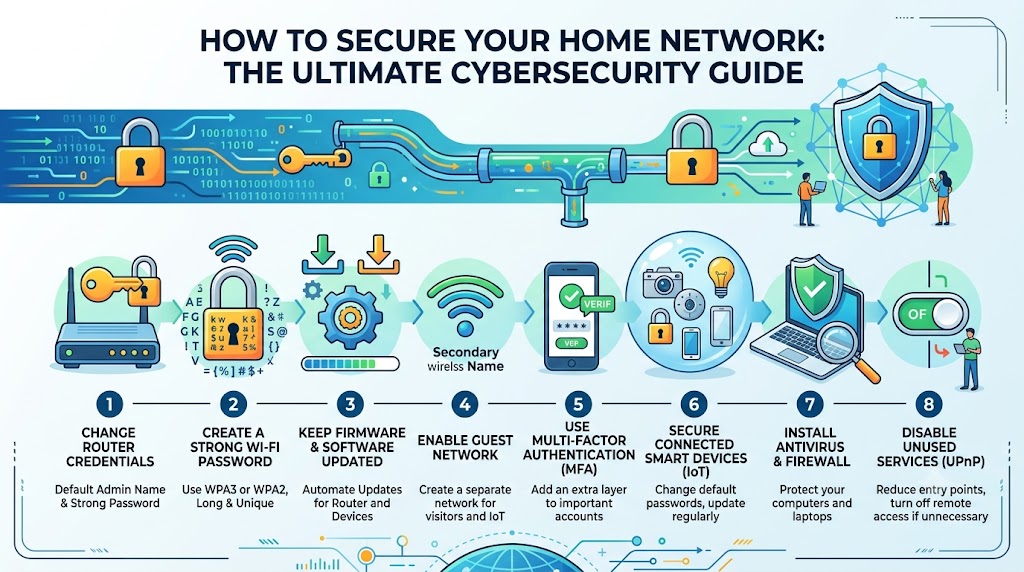
When you purchase a new router, it comes with a default username and password (such as admin and admin, or password). Cybercriminals maintain database registries of these default credentials for every router brand and model ever made. If you do not change these settings immediately, anyone within range of your Wi-Fi signal, or any script scanning the internet, can log into your router administration panel and take complete control of your network.
This administrator password is entirely different from your Wi-Fi network password. While your Wi-Fi password lets devices connect to the internet, the admin password allows you to alter the fundamental security settings of the router itself. Create a complex, unique administrator password of at least 16 characters using a combination of uppercase letters, lowercase letters, numbers, and symbols. Keep this password safely stored in a secure password manager.
Apply the Best Secure Router Settings

To configure your router for maximum defense, you must navigate to its web-based management page or companion mobile app and adjust the internal configurations. Here are the best secure router settings to implement:
- Change the SSID: The Service Set Identifier (SSID) is the public name of your Wi-Fi network. Default SSIDs often broadcast the make and model of your router (for example, Netgear_67 or Linksys_AC1200), telling hackers exactly what hardware vulnerabilities to look for. Rename your network to something neutral that does not identify your name, address, or router model.
- Use WPA3 Encryption: Wireless encryption scrambles the data travelling between your devices and your router. If your router supports WPA3 (Wi-Fi Protected Access 3), enable it immediately. If you have older devices that do not support WPA3, select WPA2/WPA3 transitional mode. Never use WEP or WPA, as these older protocols are highly insecure and can be cracked in minutes using freely available software.
- Disable Wi-Fi Protected Setup (WPS): WPS is a feature designed to make connecting new devices easy by pressing a physical button or entering an eight-digit PIN. However, the PIN method is highly vulnerable to brute-force attacks, allowing attackers to force their way onto your network. Disable WPS within your router settings to eliminate this critical vulnerability.
- Disable Universal Plug and Play (UPnP): UPnP allows devices on your network to discover each other and automatically open ports to connect to the wider internet. While convenient for gaming consoles, UPnP is a notorious security hazard because it allows malware to silently bypass your router firewall. Disable UPnP and manually configure port forwarding only when absolutely necessary.
- Disable Remote Management: This feature allows you to log into your router administration page from outside your home. In almost all circumstances, the security risk of leaving this port open to the internet far outweighs the convenience. Disable remote management to ensure your router can only be configured by a device physically connected to your local network.
Establish a Router Firmware Update Best Practices Policy

Like any software, the operating system running your router (called firmware) contains security vulnerabilities that developers discover over time. Manufacturers release firmware updates to patch these security loopholes. An outdated router is one of the easiest entry points for modern network intrusion tools.
Make it a habit to log into your router interface at least once every three months to check for firmware updates. If your router features an automatic update setting, enable it. If it does not, you must perform manual checks regularly. Once a router reaches its End-of-Life (EOL) status and the manufacturer stops issuing firmware patches, replace the device immediately. Running an unsupported, unpatched router is an unacceptable cybersecurity risk.
How to Secure IoT and Smart Home Devices
Smart home appliances, also known as Internet of Things (IoT) devices, are notoriously insecure. Manufacturers often rush these products to market with minimal security features, unpatchable software, and hardcoded credentials. Securing these devices requires a containment strategy to prevent them from compromising your core computing devices.
Implement a Guest Network Setup Guide Strategy
The single most effective way to protect your computers, tablets, and smartphones from compromised smart home gadgets is network segmentation. By creating a separate network specifically for your smart home devices, you build a digital firewall that prevents lateral movement within your home network.
Almost all modern routers feature a Guest Network option. Treat this guest network as your dedicated IoT network. When setting it up, follow this guest network setup guide:
- Enable the guest network feature in your router settings.
- Assign a unique SSID to this guest network (e.g., Guest_Network or Smart_Home).
- Apply strong WPA2 or WPA3 encryption with a complex password that is completely different from your primary Wi-Fi password.
- Disable the setting that allows guest users to see or communicate with other devices on the network. This setting is often called “SSID Isolation,” “AP Isolation,” or “Allow guests to see each other.” By isolating devices, you ensure that if your smart thermostat is hacked, the attacker cannot reach your personal laptop or network storage system.
- Connect all smart TVs, smart plugs, robotic vacuums, security cameras, and intelligent appliances to this isolated guest network, keeping your primary network reserved exclusively for your personal computers, phones, and trusted backup drives.
Audit and Harden Individual IoT Devices
Beyond network segmentation, you must configure each smart device individually to minimize its vulnerability profile. Always change the default passwords of new smart devices during the initial setup process. Use strong, unique passwords for every companion app and online portal associated with your smart home gadgets.
Additionally, disable any features you do not use. If a smart TV has a built-in microphone or camera that you never use, disable those sensors in the settings menu. Turn off remote access features within smart home apps unless you genuinely need to control those devices when you are away from home. Finally, keep the mobile apps associated with your smart devices updated to the latest versions to prevent mobile security exploits.
Advanced Home Network Security Strategies
For those looking to establish a highly resilient home network, implementing advanced security measures can provide an extra layer of protection against sophisticated digital threats.
Implement Custom Secure DNS Servers
By default, your router uses the Domain Name System (DNS) servers provided by your Internet Service Provider (ISP). These default servers are often slow, lack privacy features, and do not block malicious domains. By switching your router’s DNS settings to a secure, third-party provider, you can prevent your devices from connecting to known phishing, malware, and scam websites.
Excellent free secure DNS options include Cloudflare (1.1.1.2 for malware blocking, or 1.1.1.3 for malware and adult content blocking) and Quad9 (9.9.9.9). When you configure these secure DNS addresses at the router level, every device on your network is automatically protected from accessing dangerous web addresses, providing a powerful, invisible shield against online threats.
Consider a Router-Level Virtual Private Network (VPN)
A Virtual Private Network (VPN) encrypts all internet traffic flowing to and from a device, hiding your online activity and physical location from ISPs, advertisers, and hackers. While many people use VPN apps on individual devices, setting up a VPN directly on your router protects every single device connected to your network, including smart TVs and game consoles that do not natively support VPN software.
Keep in mind that running a VPN on your router requires a high-performance router with a powerful processor to handle the heavy encryption workload without slowing down your internet speeds. If your router supports client VPN configuration, this is an excellent strategy for achieving total household privacy.
Understand the Limitations of MAC Address Filtering
Some older security guides recommend enabling MAC (Media Access Control) address filtering as a primary defense. Every network interface card has a unique physical address assigned at the factory. While setting your router to only allow approved MAC addresses sounds highly secure, it is actually a weak security measure in the modern era.
An attacker can easily monitor wireless traffic, identify authorized MAC addresses, and spoof (impersonate) those addresses to bypass your filter. Furthermore, many modern smartphones and operating systems randomize their MAC addresses by default to protect user privacy, which can cause connection issues on networks with active MAC filtering. Focus your energy on strong encryption and proper network segmentation instead.
Your Ultimate Home Network Security Checklist

To ensure your home network is fully fortified, use this practical checklist to audit your digital environment. Regularly reviewing these items will keep your network secure against emerging threats.
- Router Administrator Credentials: Changed from default to a unique, 16+ character password.
- Wi-Fi Password: Highly secure, complex, and known only to family members.
- Encryption Type: Configured to use WPA3 or WPA2-AES; outdated WEP and WPA options are completely disabled.
- Network Name (SSID): Generic name assigned; default router model details are hidden.
- Firmware Status: Router firmware updated to the latest version, with automatic updates enabled if possible.
- WPS & UPnP: Both Wi-Fi Protected Setup and Universal Plug and Play are disabled in the settings.
- Remote Admin Access: Turned off to prevent external internet access to router settings.
- IoT Isolation: All smart home and IoT gadgets are moved to a separate guest network with AP isolation enabled.
- Secure DNS: Custom DNS servers (such as Quad9 or Cloudflare) configured at the router level.
- Device Cleanup: Unused devices, old smart bulbs, and disconnected guest profiles removed from the network history.
Frequently Asked Questions
How do I know if my home network has been hacked?
Signs of a compromised home network include sudden and unexplained internet slowdowns, unknown devices listed on your router administration panel, frequent browser redirects to suspicious websites, security software alerts on your devices, or receiving notification emails about unauthorized account logins from your IP address. If you suspect a breach, log into your router, check the active device list, change all admin and Wi-Fi passwords, update the firmware, and perform full malware scans on all personal computers.
Does turning off SSID broadcast make me safer from hackers?
No, hiding your SSID does not provide real security. While it prevents your network name from appearing in the list of available networks for casual neighbors, any free network scanner can easily detect hidden networks. Furthermore, hiding your SSID forces your devices to constantly broadcast search signals looking for the hidden network, which can drain their batteries and actually make your devices easier to track when you are away from home. Focus on strong WPA3 encryption instead of security through obscurity.
Should I use a guest network for my smart TV and streaming devices?
Yes. Smart TVs and media streaming sticks are connected devices that run software platforms with frequent security vulnerabilities. They are also notorious for tracking viewing habits and transmitting telemetry data back to manufacturers. By placing your smart TV on an isolated guest network, you prevent it from accessing your personal computers, safeguarding your private files if the television’s operating system is ever compromised by malware.
How often should I reboot my home router?
Rebooting your router once a month is an excellent practice. Beyond clearing memory leaks and improving network performance, rebooting can disrupt certain types of malware that reside only in the router temporary volatile memory (RAM). However, a reboot will not remove persistent malware; only firmware updates and factory resets can address deeply embedded threats.
Conclusion
Securing your home network is an ongoing process of digital hygiene, not a one-time task. As our homes become more connected and cyber threats grow increasingly sophisticated, taking proactive measures to defend your digital environment is essential. By securing your router settings, updating firmware, and isolating vulnerable smart home devices on a dedicated guest network, you build a multi-layered defense system that deters attackers and keeps your private life private.
Do not wait for a security incident to expose the vulnerabilities in your home. Take an hour today to audit your router, run through our security checklist, and implement these highly effective changes. Investing a small amount of effort now will give you peace of mind, knowing that your personal data, your remote workspace, and your family’s connected devices are thoroughly protected against modern online threats.


Leave a Reply